Posted on

Understanding Model Context Protocol (MCP) for SAPĀ® Development

Introduction to Model Context Protocol (MCP)

When you interact with a Machine Learning Model—often referred to as an LLM, or Large Language Model—it needs to have knowledge of the specific type of work you want it to perform in order to be truly useful.

For instance, if you want to carry out CAPM (Cloud Application Programming Model) or SAPUI5 development, the LLM needs to internally understand the different concepts behind these frameworks. It must know their specific syntax and functioning to generate accurate code.

Most of the time, you are interacting with LLMs trained on massive amounts of data available on the internet. During its original training, an LLM consumes data spread across blogs, open repositories, help documents, and more. It then generates output based on this general learning.
Often, generic, general-purpose LLMs have consumed information on terms and topics across multiple domains. When we demand expertise from these LLMs for a highly specific task, you might not get the best outcome unless:

  • The LLM has been explicitly trained or fine-tuned on domain-specific large datasets.
  • You are using an extremely large model (e.g., 200+ billion parameters) that already possesses comprehensive, in-depth knowledge and domain expertise in your field.

Another way to achieve this is by providing the LLM with the context of your domain. If the LLM understands basic logical operations, it can derive linkages from your specific domain context.
For example, imagine you provide an SAP® CAPM help document to an LLM that has limited prior knowledge of CAPM coding. Internally, it might be well-versed in JavaScript and other open-source stacks, but because CAPM isn’t entirely open-source, the model might lack extensive training in CAP programming specifically.
How Chunking and Context Work

Rather than passing an entire help document to the AI, you divide the development practices into different sections based on the specific activities that need to be carried out. In LLM terminology, these individual sections are referred to as chunks.
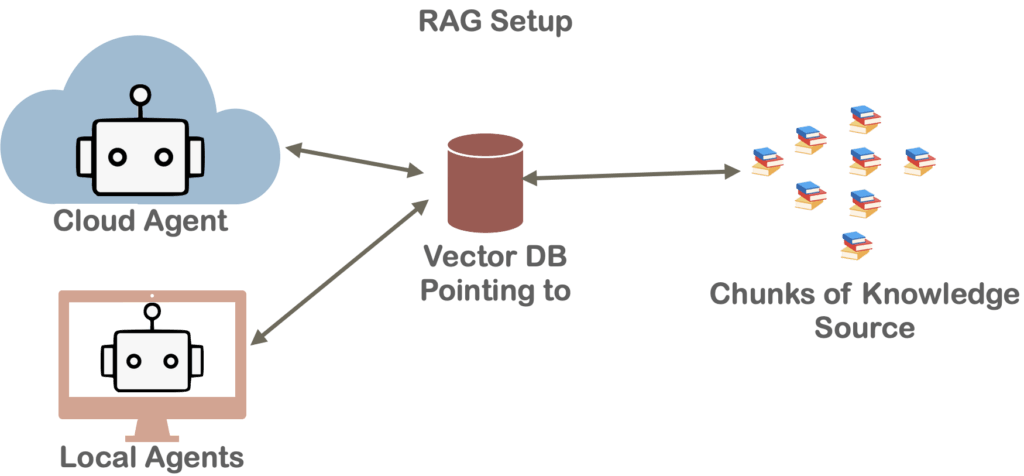
Once you have divided the entire help document into chunks based on relevance, you pass only the chunks the LLM currently needs to know. The reason for this is the context window (or working memory) limitation; passing an entire document requires significantly more processing power and VRAM. Therefore, based on the specific task, you pick the relevant chunks and pass only those. This is typically managed using a Vector Database (Vector DB), which stores and retrieves these chunks based on the user’s task to provide context to the LLM.

It can also happen that, instead of a static help document, you are talking to a live system and extracting information in real-time. The system can provide data records on the fly based on what is requested.

Enter the Model Context Protocol (MCP)
This entire process of dynamically providing data is being standardized through the Model Context Protocol (MCP). Through MCP, you pass data into the LLM’s context. In simple terms, you extract relevant information and dynamically feed it into the LLM’s working memory.

The Model Context Protocol (MCP) is an open standard and open-source framework introduced by Anthropic to standardize the way LLMs integrate and share data with external tools, systems, and data sources. MCP provides a standardized interface for reading files, executing functions, and handling contextual prompts. The entire MCP protocol operates as an open standard (now hosted under the Linux Foundation).

MCP gives everyone a single, agreed-upon standard—much like the USB-C standard for hardware—allowing you to connect external data to AI systems using an open and common framework. Under the hood, MCP uses a client-server architecture powered by a lightweight messaging format called JSON-RPC 2.0.
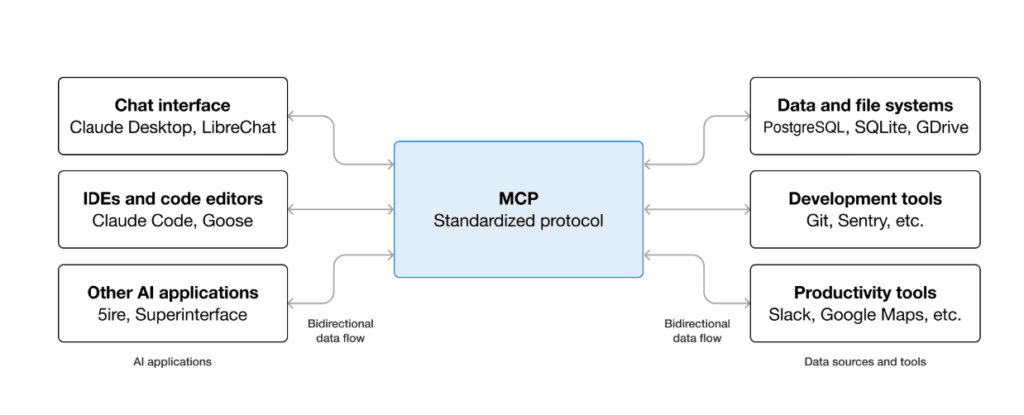
[Image Source: https://modelcontextprotocol.io/docs/getting-started/intro]

Here’s the basic picture:

  • An MCP Server is a program that exposes a capability—like “read this database” or “create a sales order.”
  • An MCP Client (usually your AI assistant or the app it lives in) connects to that server and uses those capabilities.
  • The Protocol itself is simply the shared language they use to communicate.

MCP in Development

When we build SAPUI5 apps from scratch or extend existing functionality, dedicated MCP tools are provided to help standardize the LLM’s responses.

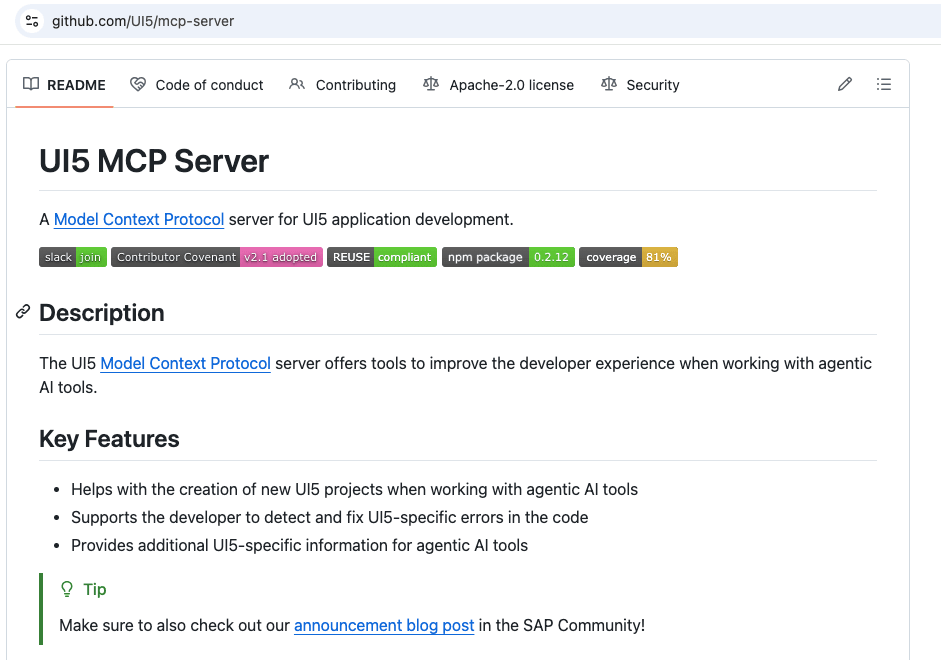
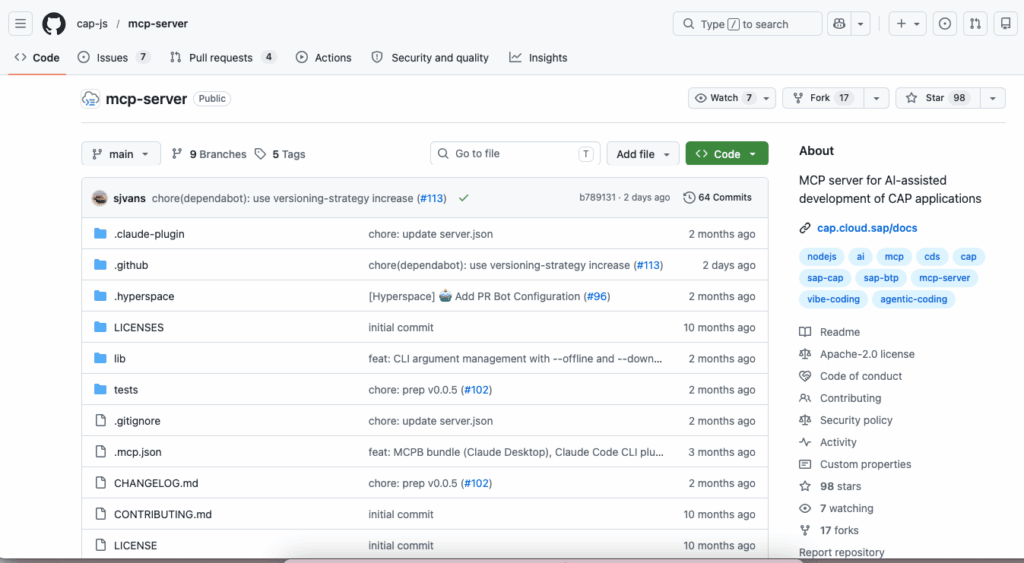
The UI5/mcp-server and cap-js/mcp-server are specialized MCP servers designed to enhance AI-assisted development within the SAP® ecosystem:

  • The UI5 Server: Equips AI agents with tools to scaffold UI5 applications, validate manifests, and pull specific UI5 API documentation and best practices.
  • The CAP Server: Empowers AI models to natively understand the SAP® Cloud Application Programming Model by allowing them to fuzzy-search CDS model definitions and perform local, vector-based semantic searches through CAP documentation.
As an SAPUI5 and SAP® CAPM developer, if you are building apps by directly interacting with AI agents like Claude, Codex, or others, you will find that the agents initially generate code based solely on their pre-existing training for that framework. Adding MCP support to your coding agent will further boost accuracy, steering the AI toward not only more standardized code but also more accurate, best-practice-based outcomes.
Want to learn more? If you want to dive deeper into how you can develop apps using SAPUI5 and SAP® CAPM with MCP, we highly recommend the UI5CN Learn AI Development for SAP® Developers course. It covers these topics alongside others, such as: working with AI and LLMs, using agents (like Claude, Codex, and Cline) to run LLMs, practical hands-on LLM usage, SAP® MCP, AI SDKs, and more!
Posted on

SAPĀ® FioriĀ® Elements with SAPĀ® CAPM App


Learn to Create and Use SAP® CAPM Apps with SAP® BAS!

Hey there, SAP® Tech Masterminds! We’re thrilled to bring you a fun and easy two-part blog series. We’ll guide you through creating and using SAP® CAPM Services in SAP® BAS for your SAP® Fiori® Element Apps.
Whether you’re new to coding or a seasoned expert, these blogs are for you. Let’s get started!


Part 1: SAP® Fiori® Elements with SAP® CAPM App – Sample SAP® CAPM App

Imagine you, a cozy drink, and your laptop. Now, follow the simple steps to create your simple SAP® CAPM app. In this first blog, you’ll learn:

  • Step-by-step instructions to build your SAP® CAPM App and its oData V4 services.
  • You can perform these steps in SAP® BAS IDE.


Part 2: SAP® Fiori® Elements with SAP® CAPM App – SAP® Fiori® Element App

Now that you’ve built your SAP® CAPM app, it’s time to put it to work. In the second part of our series, we’ll show you how to:

  • Connect your CAPM services to SAP® Fiori® Elements apps.
  • Turn your services into awesome, user-friendly apps using SAP® Fiori® Elements.
  • Follow simple, clear instructions to make everything work smoothly.

So grab your favorite snack, get comfy, and join us on this coding adventure. Stay tuned for the first part – it’s going to be amazing!


Also, to Learn Fiori® Elements using SAP® CAPM and SAP® RAP you can enroll in the course Learn SAP® Fiori® Elements where we will learn in a Step-by-Step Fashion the development of Apps Using Fiori® Elements.

For the best offers on the course check the Offer Page.


Posted on

SAPĀ® FioriĀ® Elements with SAPĀ® CAPM App – SAP® FioriĀ® Element App

In this Blog, you will see how to use the CAPM App Service created in the last section and create a SAP® Fiori® Elements App.


Table of Contents:

Start the Series from: SAP® Fiori® Elements with SAP® CAPM App

Go to last the Blog from: Sample SAP® CAPM App Setup

Go to the Course from: Learn SAP® Fiori® Elements from


1. Create Fiori® Element App

Create a Fiori® Element App from the Template in SAP® BAS using the below steps:

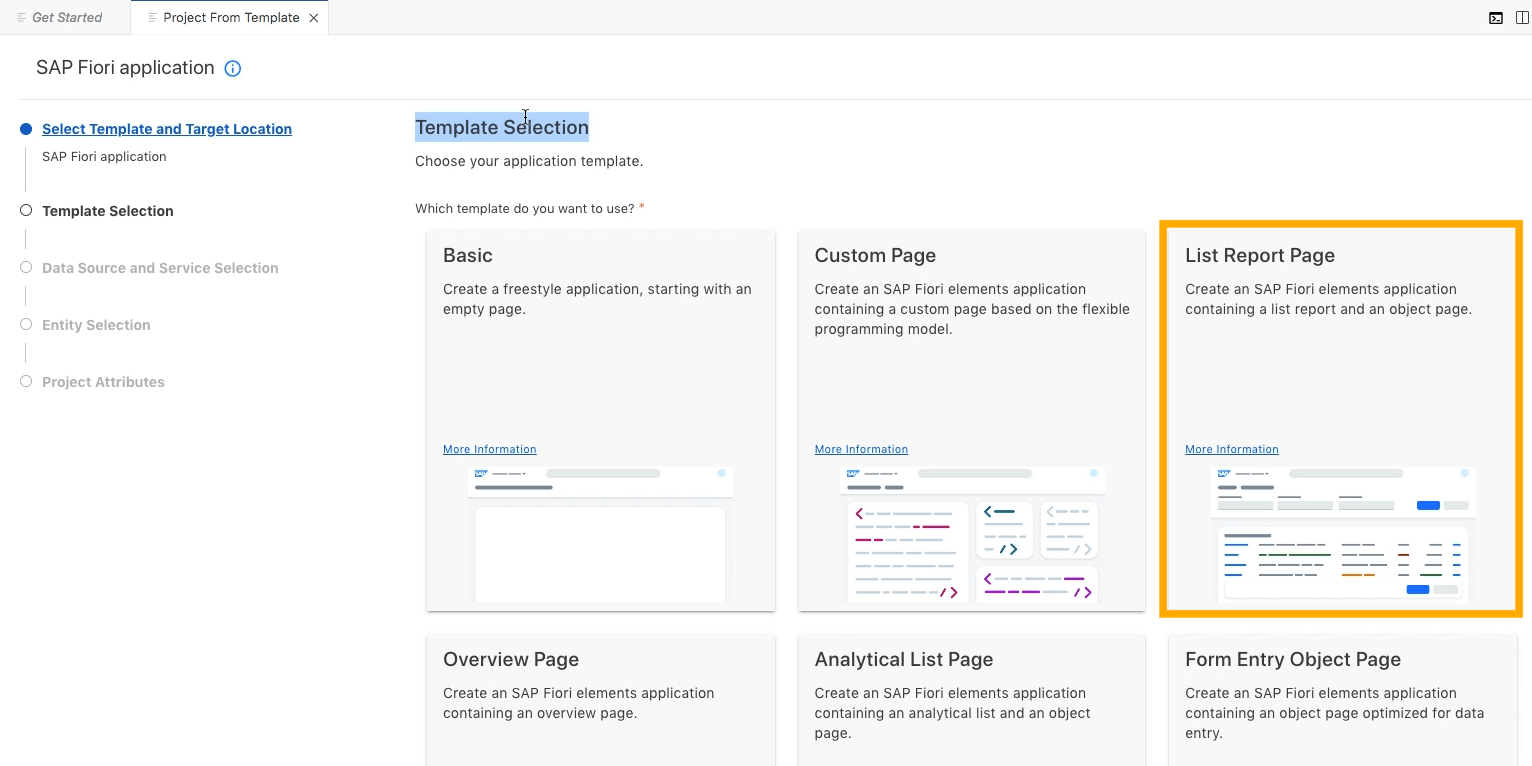
  • Select List Report Template Using File > New Project From Template [Screenshot below]
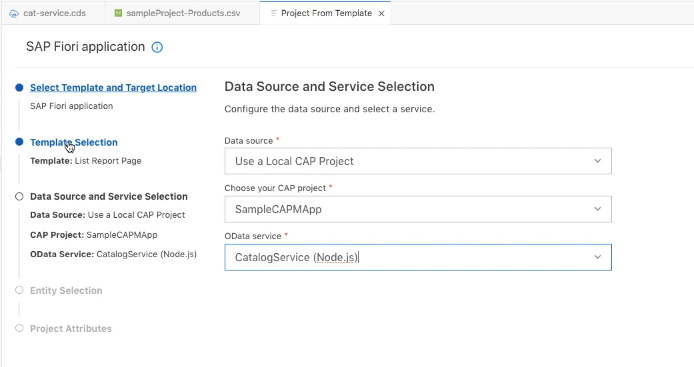
  • In the Data Source Screen, select Local CAP Project > Project > Catalog service [Screenshot below]
  • In the next screen select the Products Entity
  • In the next screen keep everything default and select Finish
  • The SAPUI5 App will be created inside the CAPM project app folder


Selection of List Report Template


Service Selection SAP® CAPM


2. Start Script

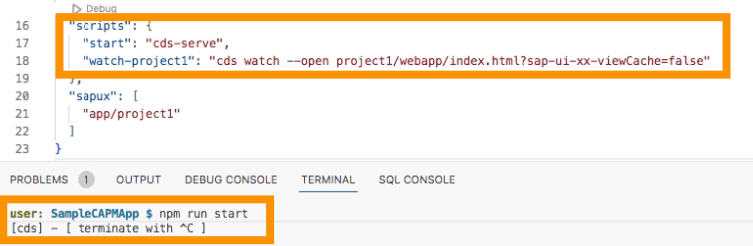
After that you will find the script to run the project from the root with the command:

npm run [start-or-watch]


3. Add Line Item

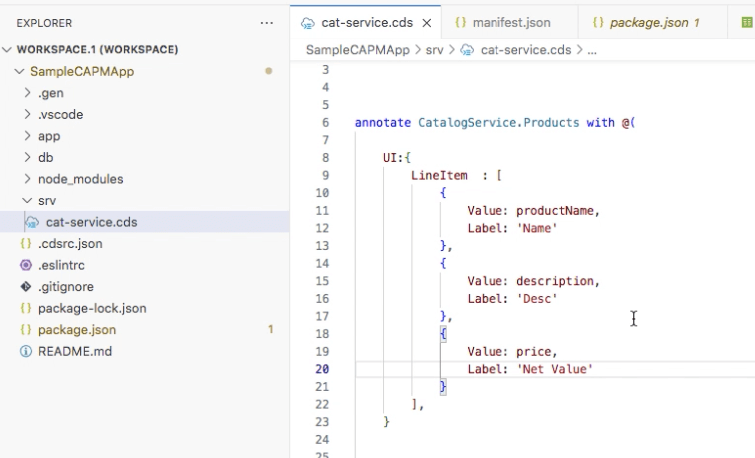
Now add LineItem annotations in the Service:

annotate CatalogService.Products with @(

   UI: {
      LineItem: [
{ Value: productName },
{ Value: category },
{ Value: price }
      ] 
    ]
   }
);

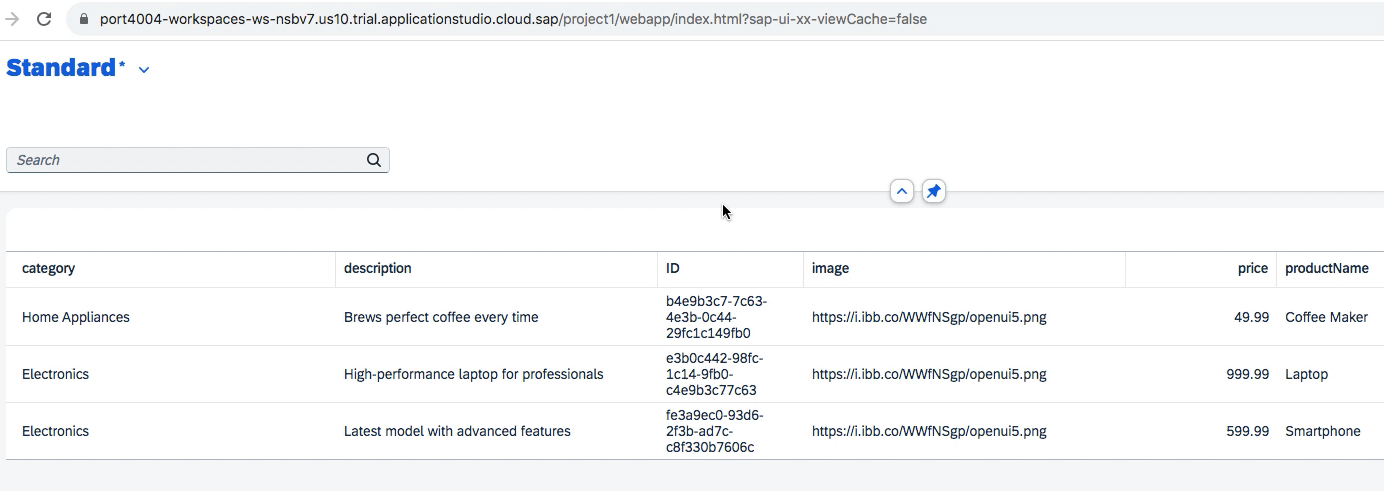
This will show 3 columns productName, category and price.


Add Line Item Annotations to the Service

Output of LineItems Annotations

Similarly, now we can add more Annotations using the codes below.

4. HeaderInfo:

Now in the same service file, we can change the default Label of what Kind of Items is shown from Product or Products in the Header columns.

HeaderInfo: {

            TypeName: 'Item',

            TypeNamePlural: 'Items',

        }

5. Header Details

Now to add navigation, we can show the image, title and description for the below code:

    HeaderInfo: {

            TypeName: 'Item',

            TypeNamePlural: 'Items',

      TypeImageUrl: image,

            Title: {

                $Type: 'UI.DataField',

                Value: productName,

                Label: 'Product'
            },

            Description: {

                $Type: 'UI.DataField',

                Value: price

            }

          }

6. FieldGroup

We can also Group together different fields using FieldGroup and show them together:

FieldGroup #Overview: {

          $Type : 'UI.FieldGroupType',

          Label: 'Overview',

          Data: [

            {

            $Type: 'UI.DataField',

            Value: productName

            },

            {

            $Type: 'UI.DataField',

            Value: price

            }

          ]

        }


7. Facets Using FieldGroup

Also, we can add many FieldGroup using Facets to the Screen with different tabs with the below codes:

Facets: [
                     {

                          $Type : 'UI.ReferenceFacet',

                          Label:'Overview',

                         Target: '@UI.FieldGroup#Overview'

                        },

                        {

                          $Type : 'UI.ReferenceFacet',

                          Label:'Tech Details',

                         Target: '@UI.FieldGroup#TechDetail'

                        }

         ]

Tabs will be created and different Groups will have information on the Fields associated with the Group.

8. Nesting of Facets


Now we can also use Collection Facets to Nest multiple Facets Together.


Here you will see that the collection doesn’t create tabs but groups them together.


Note: It is mandatory to define an ID for collection facets but optional for reference facets.

           Facets: [
                        {

                          $Type : 'UI.CollectionFacet',

                          ID    : 'FacetIdentifier1',

                          Label:'Read Overview',

                              Facets  : [

                                {

                                  $Type : 'UI.ReferenceFacet',

                                  Label:'Overview',

                                  Target: '@UI.FieldGroup#Overview'

                                },

                                {

                                $Type : 'UI.ReferenceFacet',

                                Label:'Tech Details',

                                Target: '@UI.FieldGroup#TechDetail'

                              }

                          ]

                        }

              ]


Also, you can make two collection Facets and have details within each other

Facets: [
                     {

                          $Type : 'UI.CollectionFacet',

                          ID    : 'FacetIdentifier1',

                          Label:'Read Overview',

                              Facets  : [

                                {

                                  $Type : 'UI.ReferenceFacet',

                                  Label:'Overview',

                                  Target: '@UI.FieldGroup#Overview'

                                }

                          ]

                        },

                        {

                          $Type : 'UI.CollectionFacet',

                          ID    : 'FacetIdentifier2',

                          Label:'Read Overview',

                              Facets  : [

                                {

                                $Type : 'UI.ReferenceFacet',

                                Label:'Tech Details',

                                Target: '@UI.FieldGroup#TechDetail'

                              }

                          ]

                        }

              ]


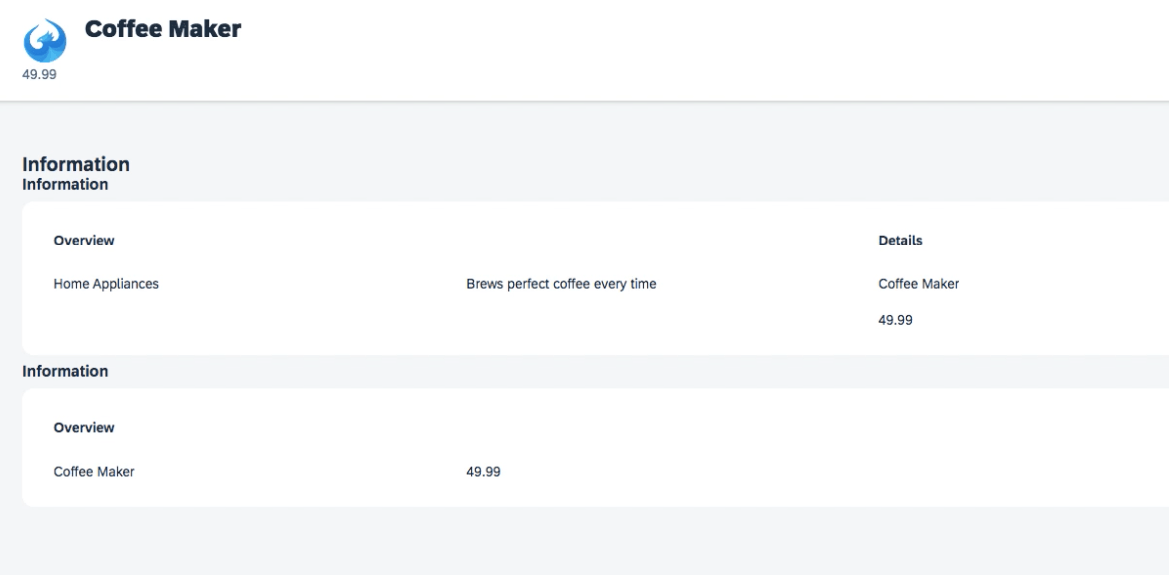
The final result will look similar to the screenshot below in the Navigation Details Screen. Based on the Nesting of Navigation the Final Result will differ.

Fiori® Elements Navigation Screen


Good practice is:

1. Not do the nesting more than 3 levels.

2. Not referencing more than 1 Reference Facets per collection or you will face rendering issues.


Posted on

SAPĀ® FioriĀ® Elements with SAPĀ® CAPM App – Sample SAPĀ® CAPM App Setup

In this blog, you will see how to set up the setup SAP® CAPM App in SAP® BAS:


Table of Contents:

Start the Series from: SAP® Fiori® Elements with SAP® CAPM App

Go to the next Blog from: SAP® Fiori® Elements with SAP® CAPM App – Fiori® Element App

Go to the Course from: Learn SAP® Fiori® Elements from


1. Create a SAP® CAPM Project to generate sample files and structure. In the BAS CLI you can write:

cds init sample-project

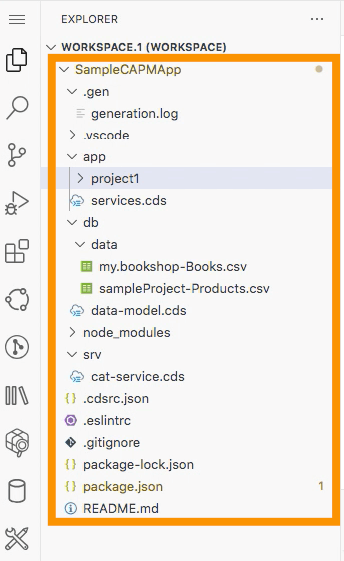
Some of the files created in the project like the data CSV file and the app folder will be added in the coming steps:

SAP® CAPM Project creation


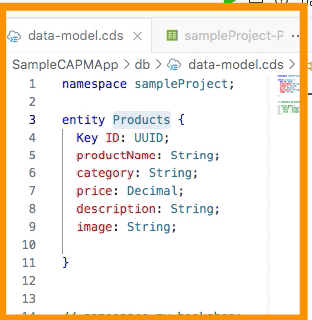
2. Go to the db folder and create a file data-models.cds to add the schema:

namespace sampleProject;

entity Products {
  key ID: UUID;
  productName: String;
  category : String;
  price : Decimal;
  description : String; // New field for product description
  image : String; // New field for image URL
}

3. Add sample data values inside the data folder in a CSV file and name it project-Products.csv:

ID;productName;category;price;description;image
"e3b0c442-98fc-1c14-9fb0-c4e9b3c77c63";"Laptop";"Electronics";999.99;"High-performance laptop for professionals";"https://i.ibb.co/WWfNSgp/openui5.png"
"fe3a9ec0-93d6-2f3b-ad7c-c8f330b7606c";"Smartphone";"Electronics";599.99;"Latest model with advanced features";"https://i.ibb.co/WWfNSgp/openui5.png"
"b4e9b3c7-7c63-4e3b-0c44-29fc1c149fb0";"Coffee Maker";"Home Appliances";49.99;"Brews perfect coffee every time";"https://i.ibb.co/WWfNSgp/openui5.png"

SAP® CAPM Data Model


4. Create a basic service inside the srv folder in the file catalog-service.cds :

using sampleProject from '../db/data-model';
service CatalogService {
entity Products as projection on sampleProject.Products;
}


5. We have created a SAP® CAPM App to explore which can be used in a Fiori® Element Template, so let’s start making that.
Note, that this SAP® CAPM App will be used in the Fiori® Element Template, so we need to keep the App running and create a new Project From Template which we will do next.

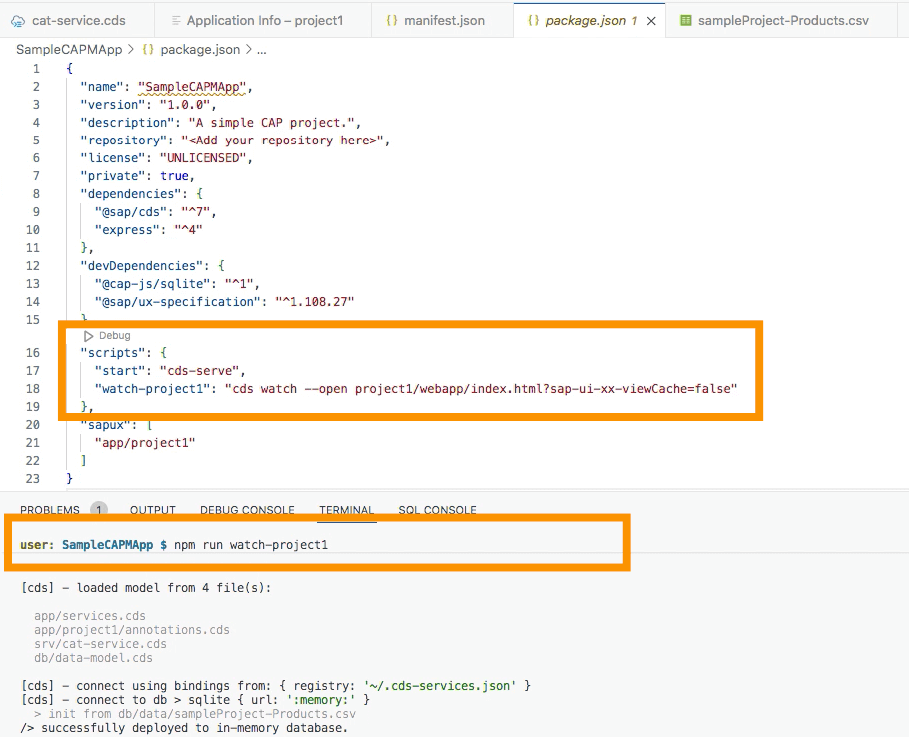
To run the App we can use the Start Script of the App from the package.json file:

npm run start

or

npm run [watch-project-name]

Running SAP® CAPM App

Posted on

CDS Views in 21 Points

CDS views

 CDS Views

  • Views are Projection over Data and are not Actual Data. Similarly, CDS(Core Data Services) are views which are projection over Database Tables.
  • With CDS View one can create a view by writing DDL Code which is easier to understand.
  • CDS Views can have a relationship with each other like association, composition, and also Join like Left outer Join, Inner Join, etc. Using this you can create complex data models.
  • In S/4 HANA® VDM is created with CDS Views. And it is one of the key selling points of S/4 HANA®.
  • VDM stands for Virtual Data Model, the concept is you do not expose a database directly to the outside world but you create views over the database and with the help of these views one can read data and update data.
  • Views are primarily used to read data and with the help of ABAP® code, you can update the data which is mostly in the case of Transactional Application.
  • The Update of data in Transactional Application in S/4 HANA® is done with AMDP, BOPF, ABAP® Restful Programming, etc.

If you want to see and learn CDS-Based Development Hands-on. You can also check out the CDS Professional Development course here. We have also other courses like ABAP® Restful here where we have covered the VDM in-depth and how one can create a transactional application with the Restful framework.


Advantage of CDS Views 

  • The main advantage of CDS views is with the CDS view you can create full-fledged Data Models.
  •  For example, imagine you have to create a data model for the Order to Cash process. Here let’s only consider Sales Order Part for now. In this case, you will have a Header and Item tables. Now in data modeling, you will be creating CDS view for Header Table and CDS view for the Item table. Then you will specify that they have a composition or association relationship. The CDS view which directly extracting data from the Database table is called Basic CDS View. These Basic CDS Views can remain the same for all the Projects. Developers can further extend the Basic CDS Views to create Composite CDS Views. This layer of CDS Views can be used in applications. One can again Create one more layer of CDS Views over Composite CDS Views called Consumption CDS view which will be Custom Build to be used in a specific application. The naming convention of the Basic CDS view is (I_*, example I_PurchaseDocHeader), composite is (I_*) and consumption is (C_*). These Hierarchies are referred to as VDM(Virtual Data Model) which is one of the key aspects of S/4 HANA®.
  • CDS Views are not dependent upon the database, so you can use CDS views over any SAP® Supported Database.
  • In CDS Views Client Handling is automatic, even if you want to ignore it in your code, it can be handled internally.
  • In CDS one can use Aggregation and Numeric Function.
  • In CDS View you can have a calculation field that can automatically calculate values-based upon every time an update of the value happens. This field can use Aggregation and Numeric Function as well. For example, if you want to Aggregate all the Item Price in Sales Order Header. This can be done with Aggregate functions. You can have a custom field in your Header CDS views with Aggregate functions to achieve this.
  • CDS views can be used in ABAP® Code to read data.
  • You can have complex Joins and Projection over the database with CDS View using CDS DDL Code.
  • CDS Views supports Open SQL Syntax. So, you can call CDS View with Open SQL in ABAP® Code.
  • CDS Views can also be viewed with SE11 T-Code Using CDS View’s SQL View Name. 
  • CDS Views are Part of the ABAP® Data Dictionary.
  • CDS View can be easily exposed as oData Service by Just adding a single annotation as @odata.publish: true
  • And finally, the most exciting thing you can do is add semantic information to data, with information like how should the data appear in UI, what the data holds, is it a currency or timestamp, what should it be called in the UI layer, what is the sequence in which data need to be represented in UI, etc.
  • This semantic information is called Annotation. Annotations can be of different types and start with a @ symbol. With the CDS Views, one can also define the UI and Presentational aspects within the view. By adding the annotation to CDS View one can control how the data is represented in frontend logic irrespective of which application is using it.

To Learn CDS Development Professionally You can Enroll in our In-Depth CDS Professional Development Course here.

UI5CN CDS Course
CDS Course | 18 hrs+

To learn how to use CDS in Transactional Application and Create Real-time Project with ABAP® RESTful you can enroll in our ABAP RAP Professional Development Course here.

ABAP Restful
ABAP® Restful